
This guide explains how to configure Intrusion Alert–based events. The key benefit is that Intrusion Alerts rely entirely on MASS alarm logic, so RSA receives events only when an alarm zone is truly triggered.
With this approach, all filtering and detection are handled within MASS.
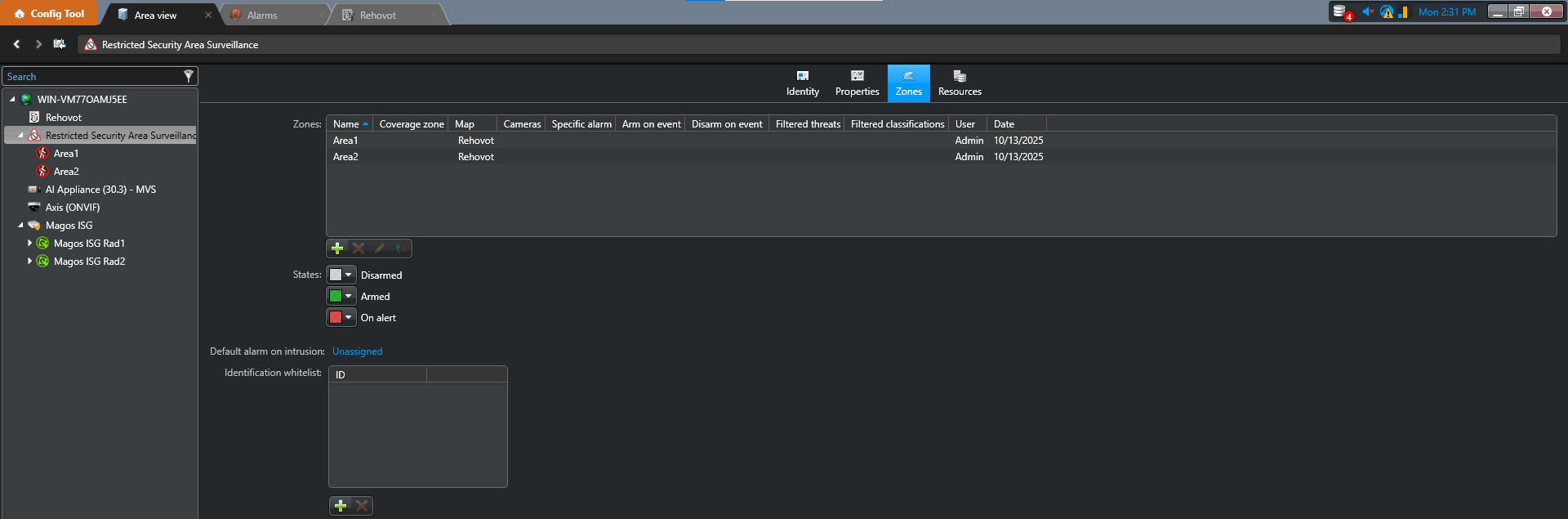
1. Create alarm zones in MASS.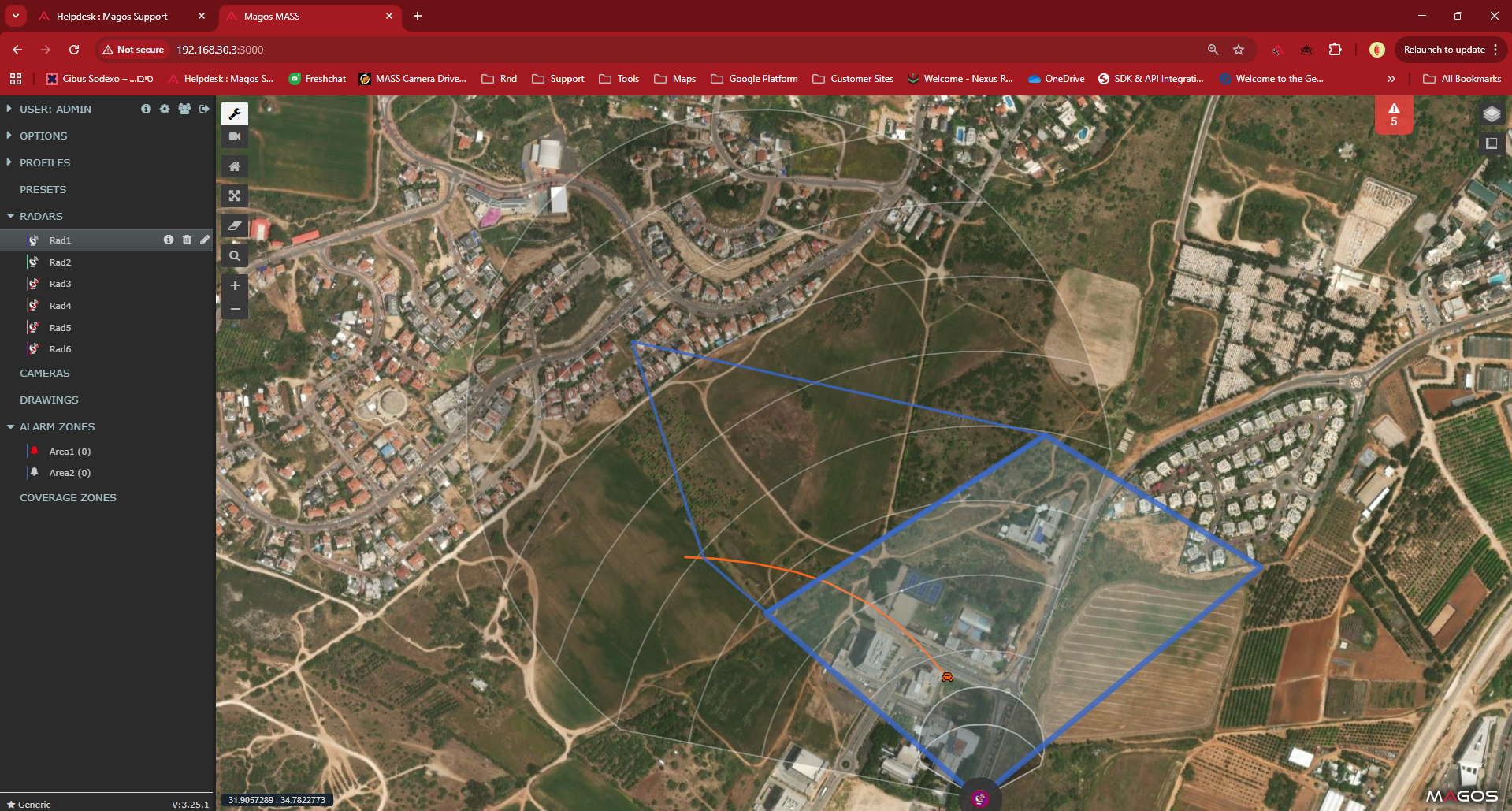
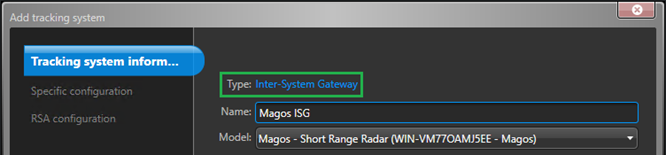
Using ISG (Inter System Gateway) Tracking System
1. Add Inter System Gateway Tracking System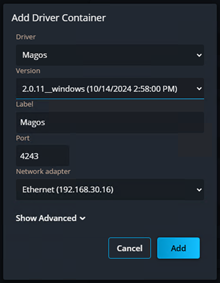
2. Select events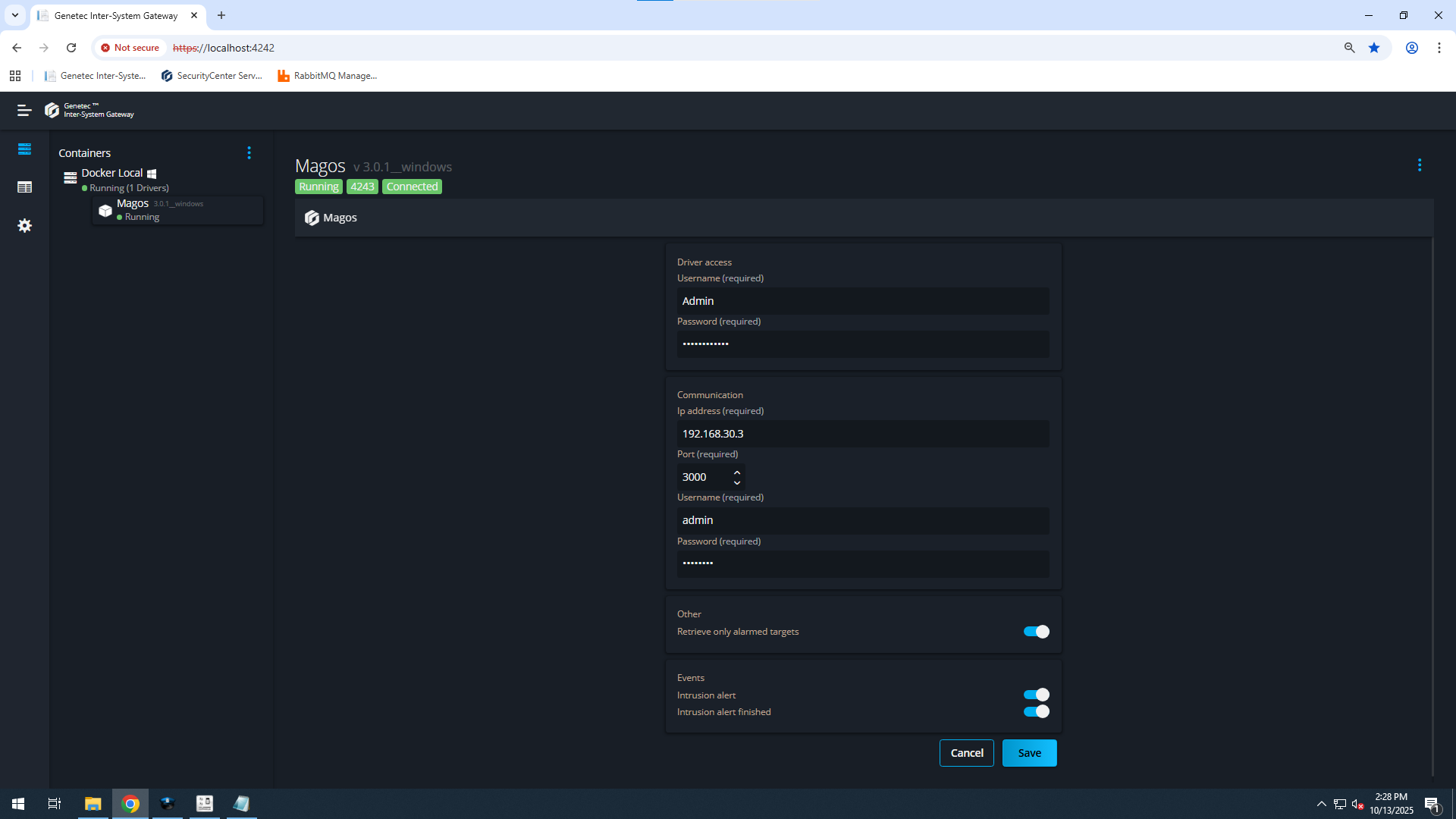
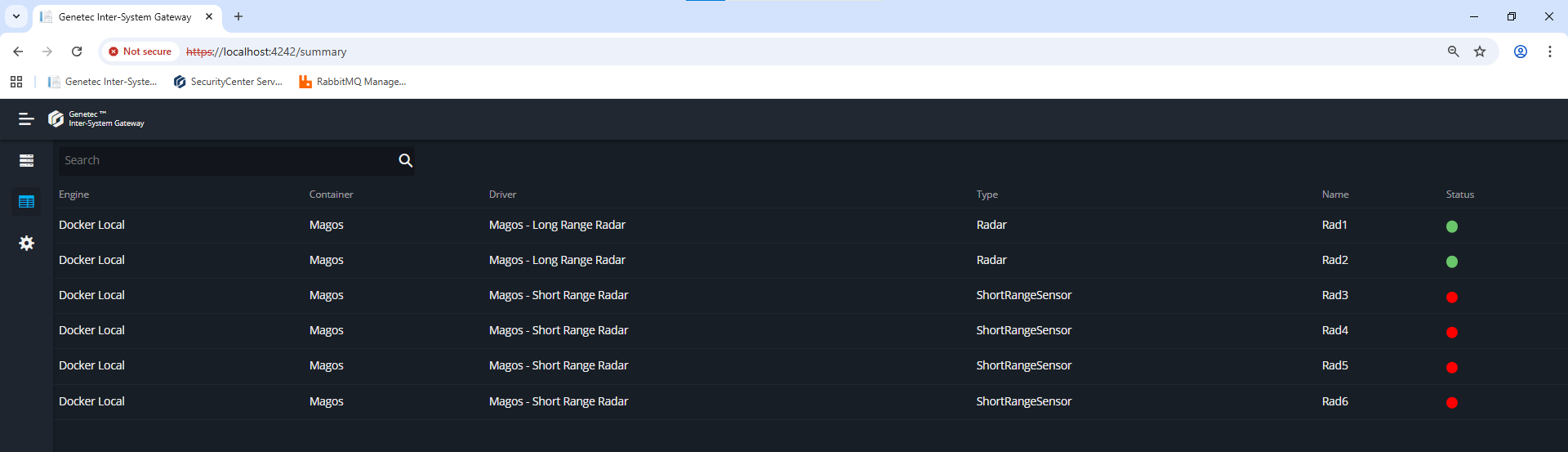
3. Add ISG Tracking System
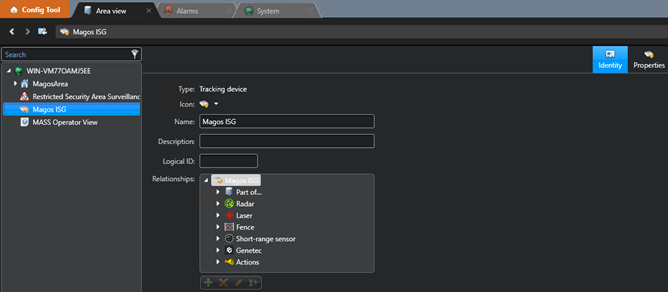
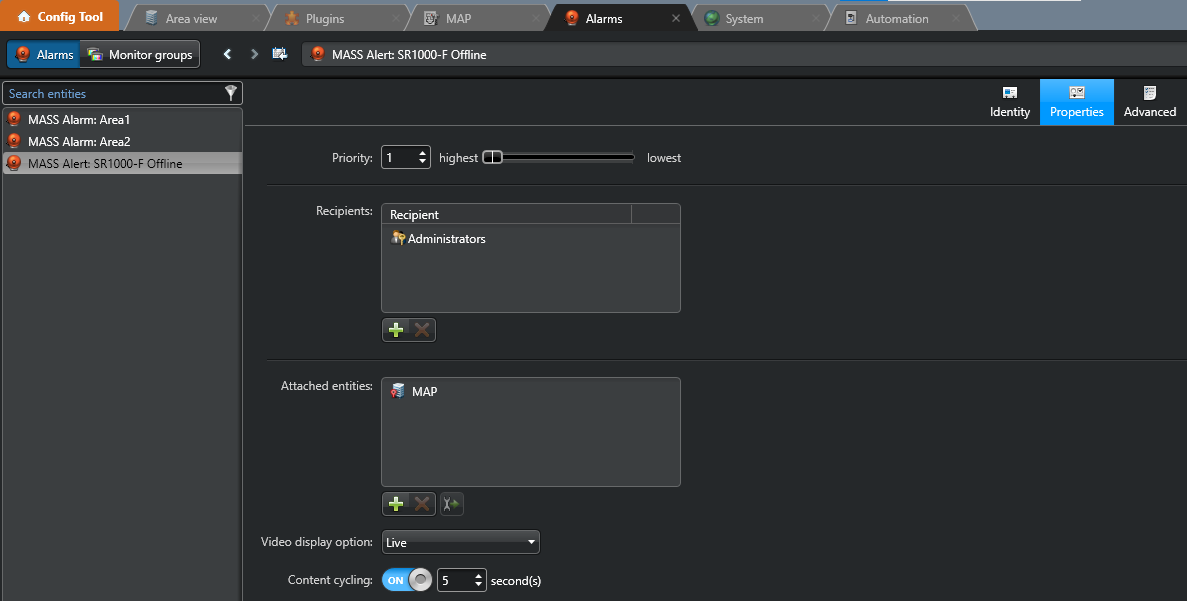
4. Create alarm for each alarm zone, and radar sensor in MASS.
4.b - Create alarm for each alarm zone in MASS.
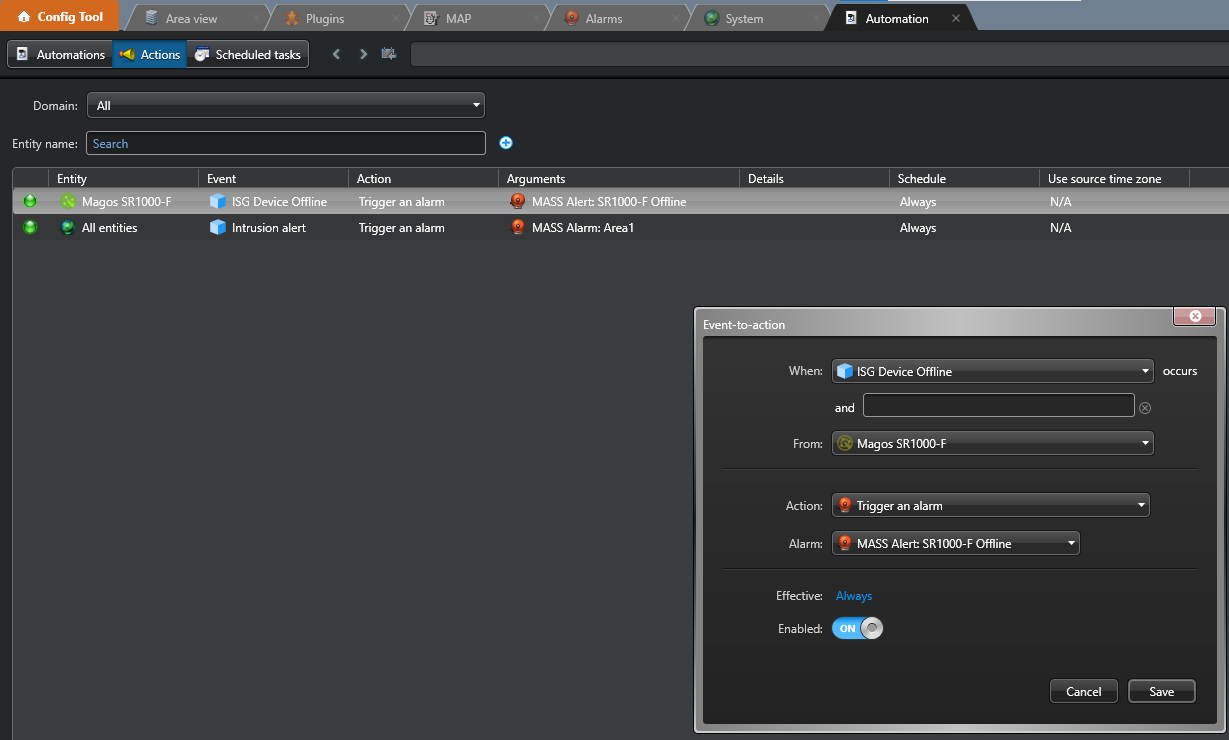
5. Create Actions to trigger Alarms with Alarm name filter
5.a - Create Intrusion alert for each alarm zone in MASS.
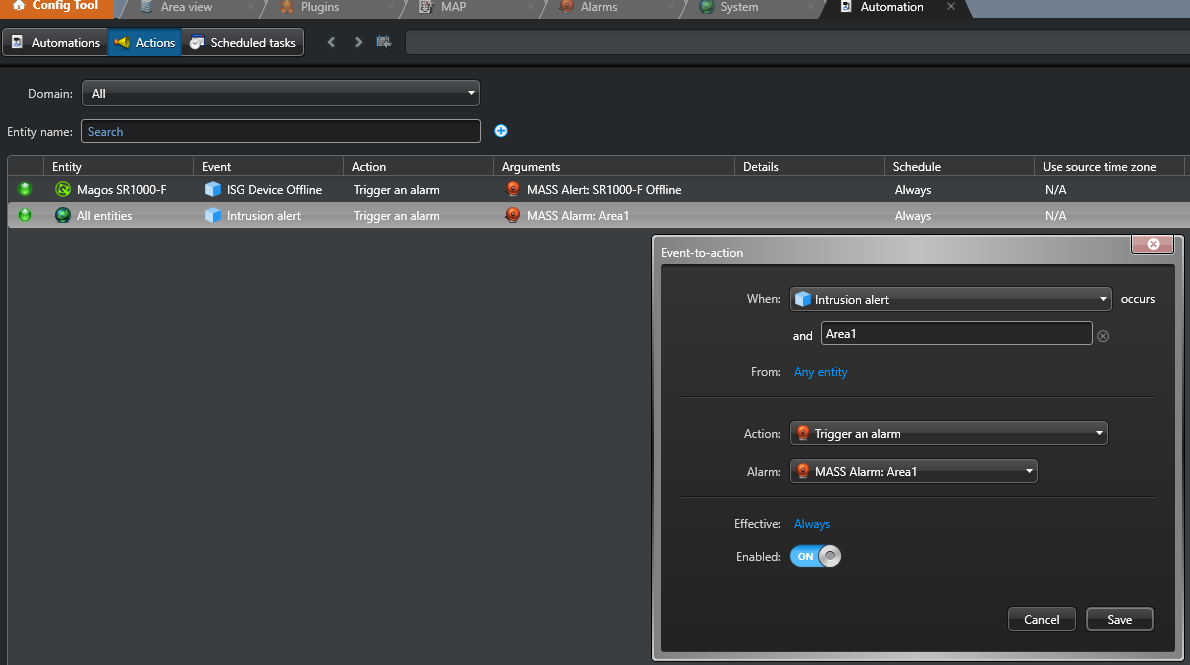
5.b - Create ISG Device Offline for each radar in MASS.
6. Import MASS alarm zones polygons to RSA MAP.
Using RSA , Magos Tracking System - old integration, no longer under active development.
1. Open config tool > Area view.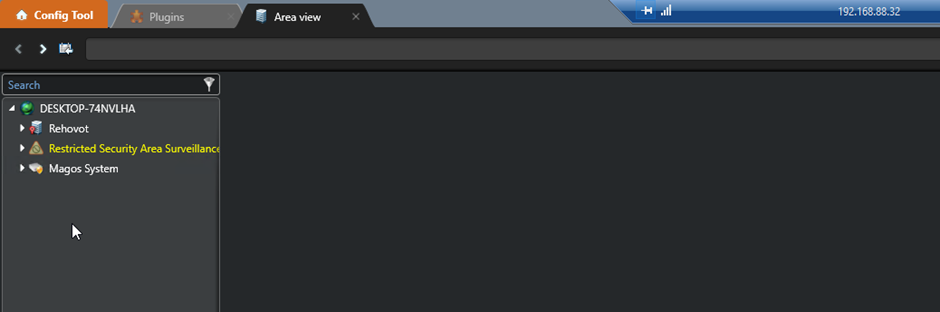
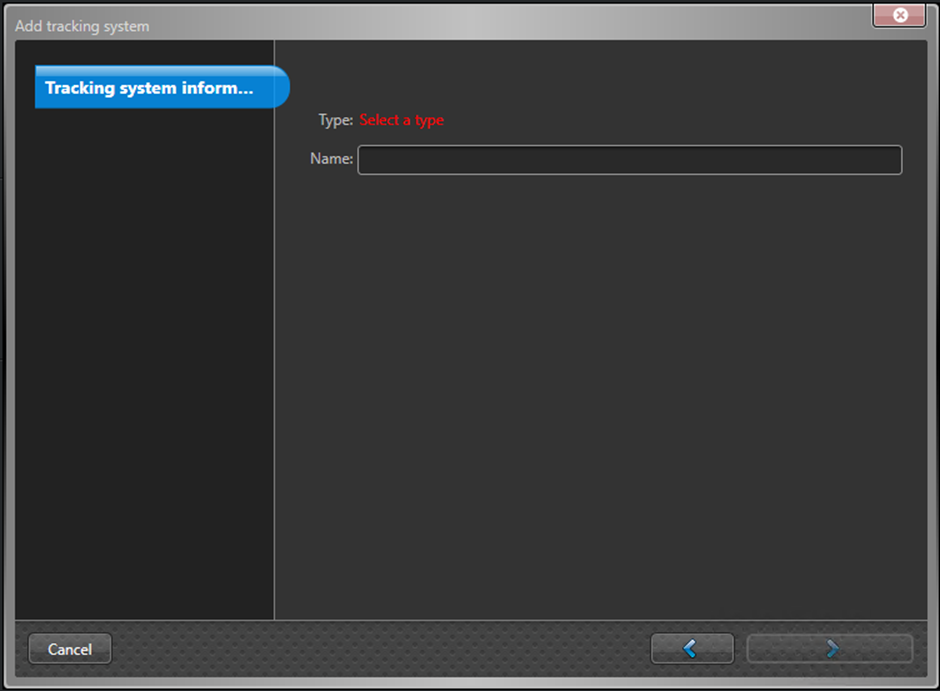
2. Click add an entity.
- Enter Select Type: Magos
- Enter Name: Whatever you want.
- Click next.
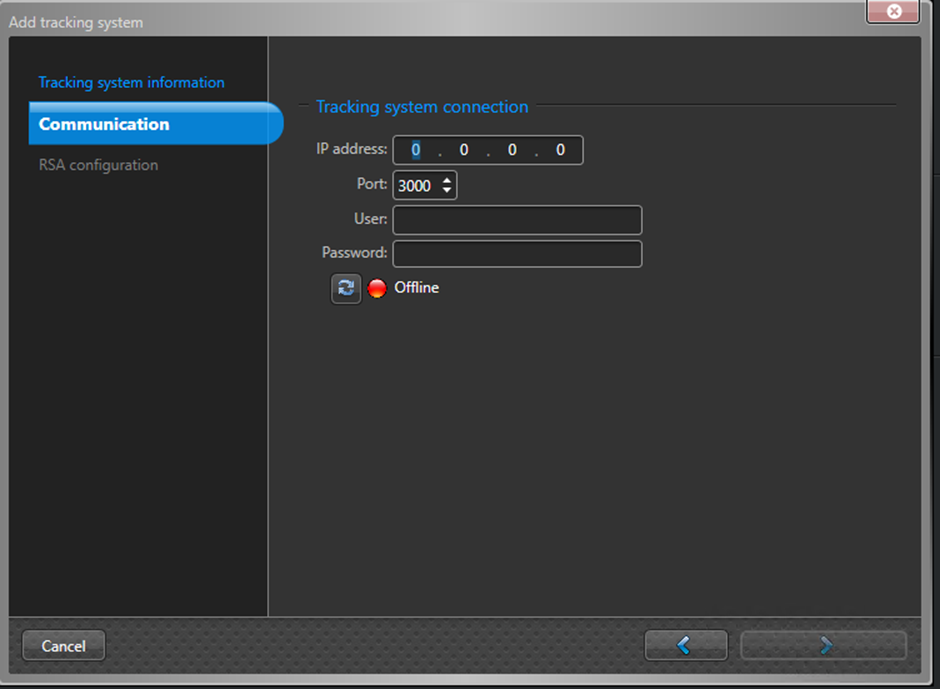
3. Connect MASS
- Enter MASS IP, Port, User and Password. Click the test button to test connection, then next.
4. Configure MAP and event types:
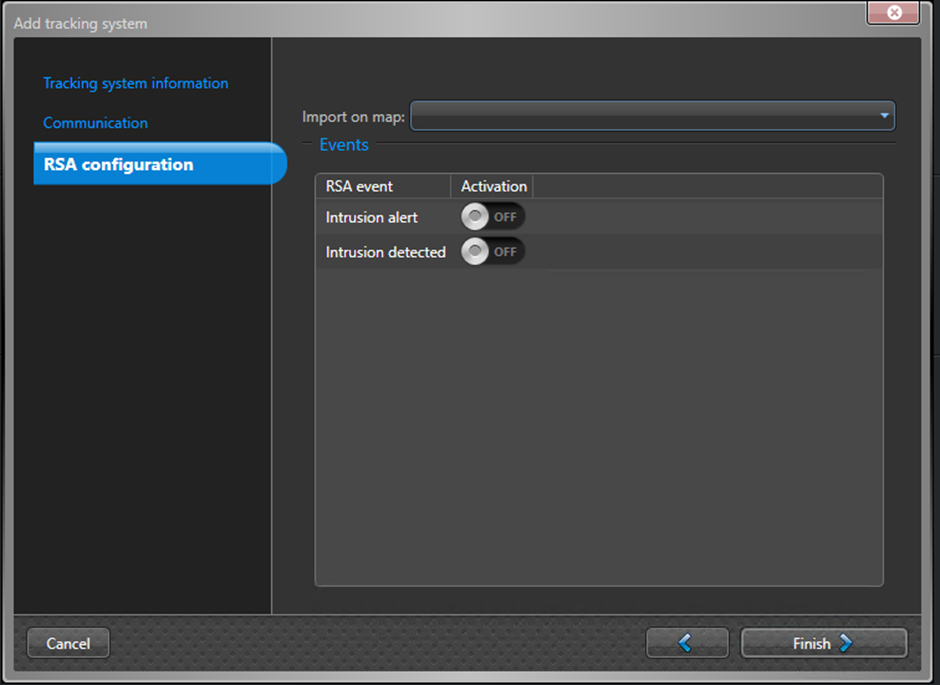
- Choose the map, then enable the type of events you want.
- Click Finish.
Intrusion Alert – This is what you’ll usually want. It generates events in Genetec based on the MASS Alarm Zone events (alarm on or off).
Intrusion Detected – Not recommended will generate an event in the RSA per every target update received from MASS.
On the left navigation pane you should see the new “Track System” added with all the radars defined in MASS within it:
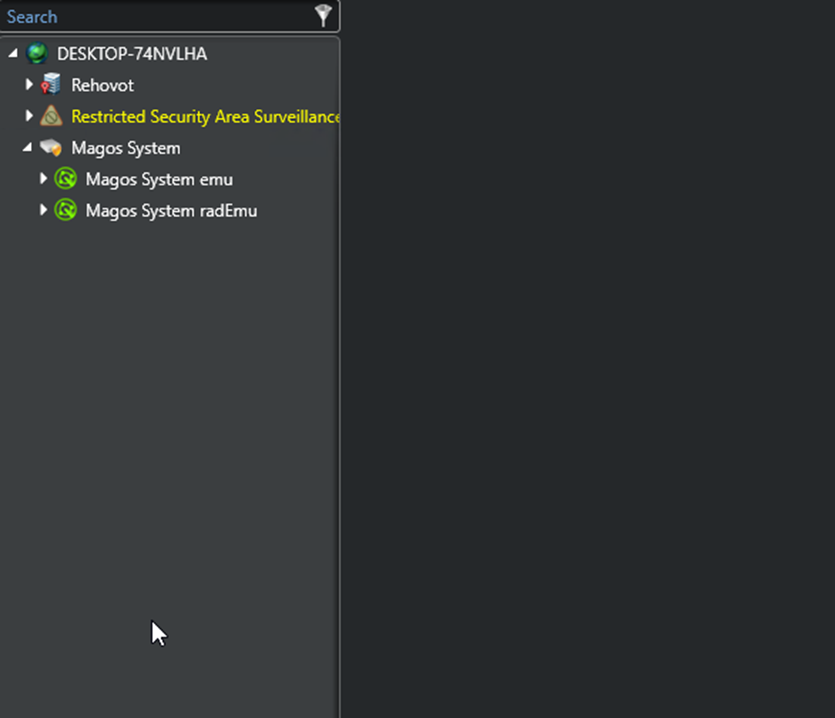
Important Note – to change the settings of the MASS server within RSA, click on the Server name in the left hand side in the navigation. Then Choose “Properties” on the top. (Sometimes the “Properties button will not appear in which case you need to click on one of the radars defined in the server, and then click on the server again – in the navigation pane on the left hand side).